Jimmy - Note Conversion Tool
Welcome to Jimmy's documentation

**Jimmy** is a tool to convert your notes from different formats to Markdown.
Installation[¶](https://marph91.github.io/jimmy/#installation "Permanent link")
**Download Jimmy here: Linux | Windows | macOS**
Use Cases[¶](https://marph91.github.io/jimmy/#use-cases "Permanent link")
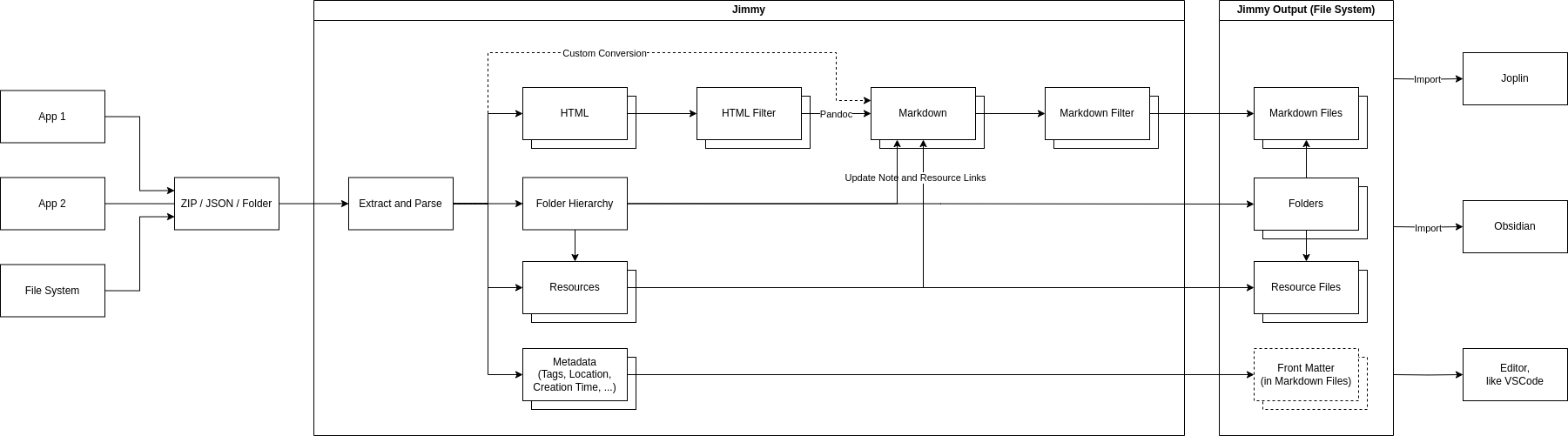
- Migrate between note apps. Jimmy's output is compatible with Joplin, Obsidian and more.
- Save your notes in a future-proof, human-readable format.
- Prepare your notes for processing in a LLM.
- Convert folders of office documents and PDFs recursively to Markdown.
Demo[¶](https://marph91.github.io/jimmy/#demo "Permanent link")
Jimmy provides two interfaces:
- The Command Line Interface (CLI) can be used for scripting and provides the full set of features.
- The Terminal User Interface (TUI) can be used to do the conversion interactively. Currently it provides only a feature subset and is still in beta.
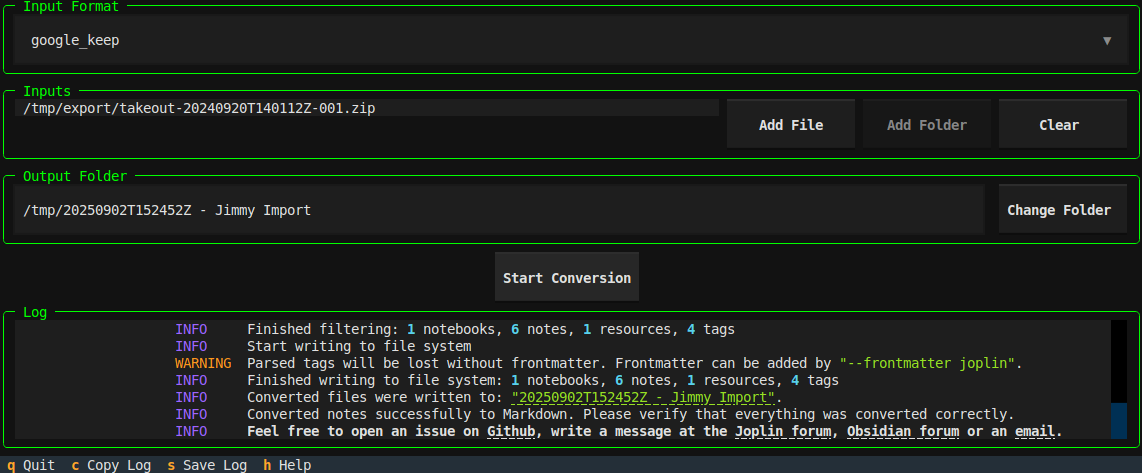
Example commands for Linux:
```
do the conversion using an interactive TUI
jimmy-linux tui
convert a single file supported by pandoc
jimmy-linux cli libre_office_document.odt
convert all files in a folder
jimmy-linux cli path/to/folder
convert a Google Keep export
jimmy-linux cli takeout-20240401T160516Z-001.zip --format google_keep ```
For a video, check the Github readme.
If there is an issue at download or execution, please take a look at the step-by-step instructions.
Features[¶](https://marph91.github.io/jimmy/#features "Permanent link")
- ✅ Several supported input formats
- ✅ Markdown + Front matter output
- Compatible with any text editor
- Can be imported to Joplin/Obsidian/...
- Preserves resources, tags and note links when possible
- ✅ Offline
- ✅ Open Source
- ✅ Cross-platform
- ✅ Standalone (no Docker, Python or Node.js installation required)
- ❎ No AI used during conversion
Supported Apps[¶](https://marph91.github.io/jimmy/#supported-apps "Permanent link")
Export data from your app and convert it to Markdown. For details, click on the links.
`A`!Image 3: Anki logoAnki!Image 4: Anytype logoAnytype`B`!Image 5: Bear logoBear`C`!Image 6: Cacher logoCacher!Image 7: CherryTree logoCherryTree!Image 8: Clipto logoClipto!Image 9: ColorNote logoColorNote`D`!Image 10: Day One logoDay One!Image 11: Diaro logoDiaro!Image 12: Drafts logoDrafts!Image 13: Dynalist logoDynalist`E`!Image 14: Evernote logoEvernote`F`!Image 15: Facebook logoFacebook!Image 16: FuseBase logoFuseBase / Nimbus Note`G`!Image 17: Google Docs logoGoogle Docs!Image 18: Google Keep logoGoogle Keep`J`!Image 19: Joplin logoJoplin!Image 20: jrnl logojrnl`N`!Image 21: Notion logoNotion`O`!Image 22: Obsidian logoObsidian!Image 23: OneNote logoOneNote`Q`!Image 24: QOwnNotes logoQOwnNotes`R`!Image 25: RedNotebook logoRedNotebook!Image 26: Reflect logoReflect!Image 27: Roam Research logoRoam Research`S`!Image 28: Signal logoSignal!Image 29: Simplenote logoSimplenote!Image 30: Standard Notes logoStandard Notes!Image 31: Synology Note Station logoSynology Note Station`T`!Image 32: Telegram logoTelegramTextbundle / Textpack!Image 33: Tiddlywiki logoTiddlywiki!Image 34: Tomboy-ng logoTomboy-ng / Gnote!Image 35: Turtl logoTurtl`U`!Image 36: UpNote logoUpNote`W`!Image 37: Wordpress logoWordpress`Z`!Image 38: Zettelkasten logoZettelkasten!Image 39: Zim logoZim!Image 40: Zoho Notebook logoZoho Notebook

























Supported Formats[¶](https://marph91.github.io/jimmy/#supported-formats "Permanent link")
Convert a single file or a folder (recursively). Files of these formats will be converted to Markdown. The formats can be mixed. For example, you can convert a folder with two Asciidoc files and one DOCX file. The conversion result will be a folder with three Markdown files and the corresponding attachments.
`A`!Image 41: Asciidoc logoAsciidoc`C`!Image 42: CSV logoCSV`D`DocBook!Image 43: DOCX logoDOCX`E`!Image 44: Emacs Org Mode logoEmacs Org ModeEML!Image 45: EPUB logoEPUB`F`!Image 46: Fountain logoFountain`H`!Image 47: HTML logoHTML`J`!Image 48: Jupyter Notebook logoJupyter Notebook`M`!Image 49: Markdown logoMarkdown!Image 50: MediaWiki logoMediaWikiMHTML`O`!Image 51: ODT logoODT!Image 52: OPML logoOPML`P`!Image 53: PDF logoPDF`R`reStructuredTextRTF`T`txt2tags










General Usage[¶](https://marph91.github.io/jimmy/#general-usage "Permanent link")
1. Export/backup notes from your note application 2. Run `jimmy`, which converts your notes to Markdown 3. Import the result to Joplin/Obsidian or even use any editor like VSCode