Using a 1978 terminal in 2026 (DEC VT-100)
I spent the last few weeks making a coding agent for the terminal. This strikes me as anachronistic: the terminal is technology from before my lifetime, and I’m using it as the interface to exhilarating, terrifying, cutting-edge, trillion dollar modern day research.
I find the juxtaposition nice. It’s a reminder that I build on what came before me, and others will build on what I leave behind.
All modern terminals are (roughly) emulations of a single terminal released in 1978: the Digital Equipment Corporation VT-100. In theory, I could take the app that I built and run it on the VT-100. If my software ran there, would it run everywhere?
To find out, I bought a VT-100 and decided to use it as my main terminal. Here’s what I learned.
What is a VT-100?
A VT-100 is a _terminal_: a screen and a keyboard that you plug into a computer. It’s roughly analogous to the `Terminal` or `Console` or `Command Prompt` app on your computer today. It is _not_ a computer itself. The VT-100’s protocol (i.e. ANSI escape sequences, more on this later) are used today by all modern terminals.
!Image 1: Vim running on the VT-100 The VT100 has a CRT display and a keyboard.
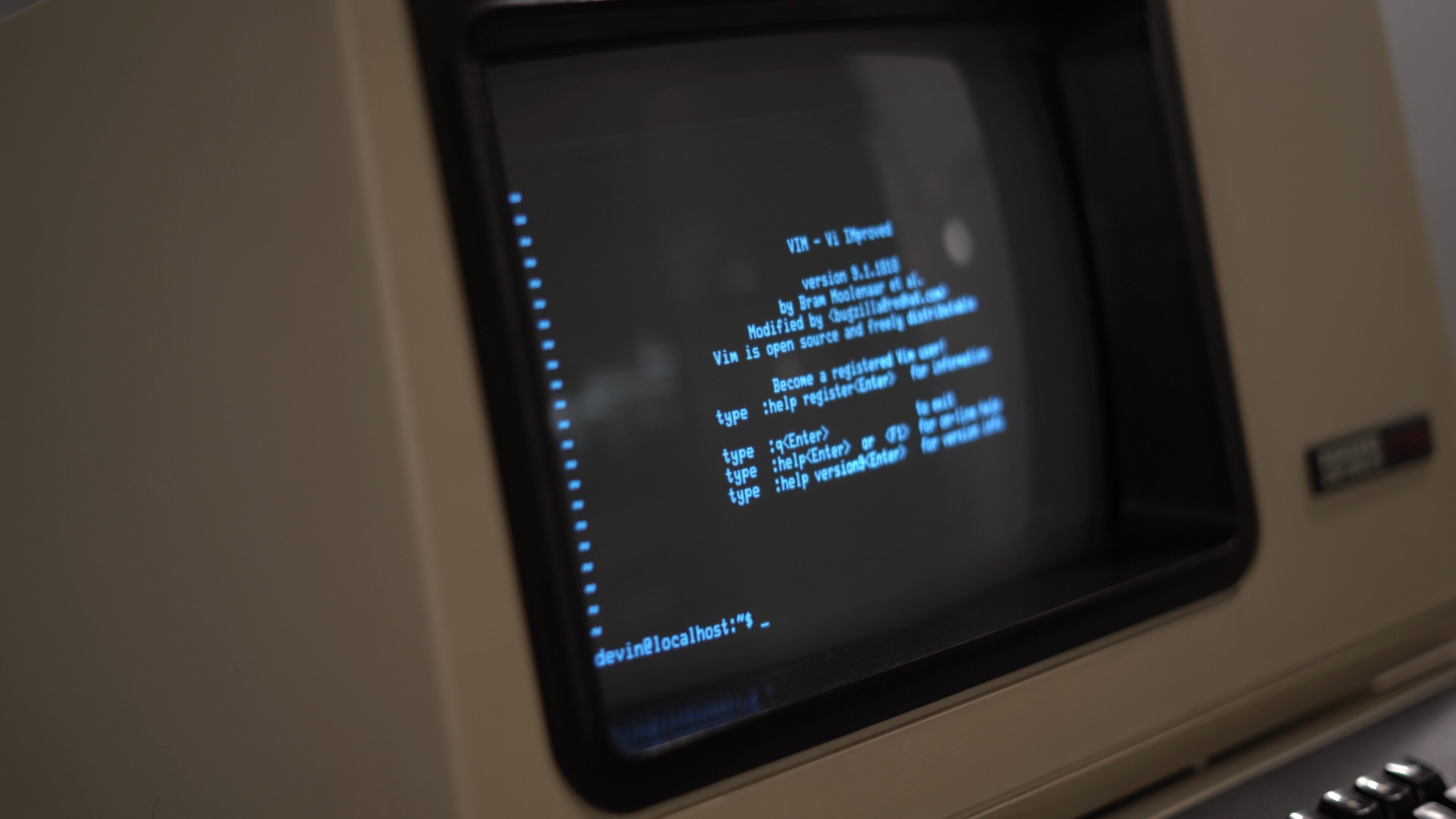
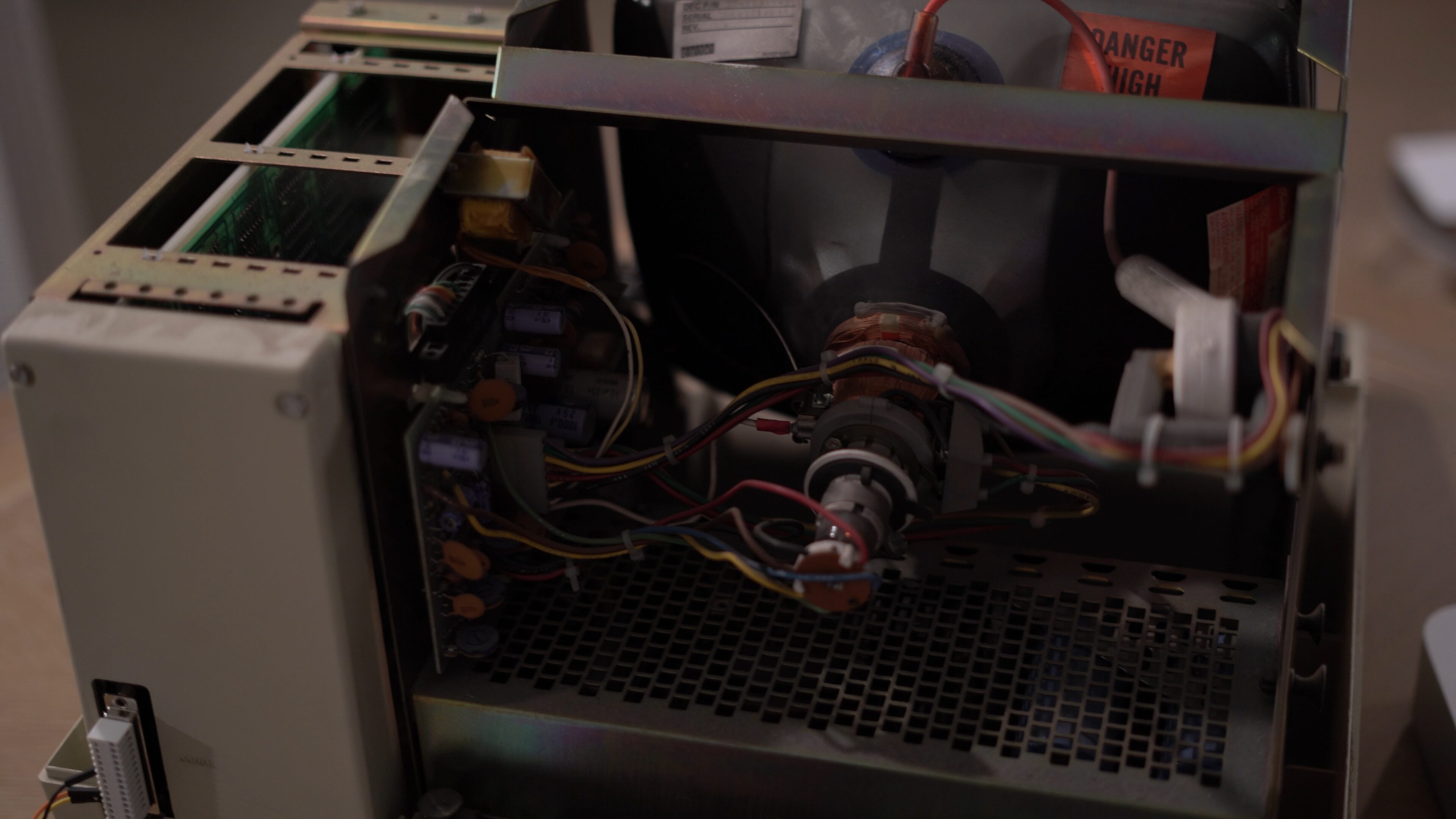
You power it on from a stick switch near the power supply. After flipping the switch it makes a startup beep noise. While on there’s an high-pitch whine from the CRT. The pitch is high enough that a couple of my friends can’t hear it at all.
The VT-100 has Intel inside (there’s an 8080 in there) and 3 KB RAM. This is less than you need to get to the moon (4 KB, Apollo 11).
The keyboard I have is from a VT120, and it is unfortunately awful: the keys are mushy, don’t register without a deep press, and are placed awkwardly for modern usage. We have innovated on keyboard design since then.
How do terminals work?
On the terminal end it is pretty simple. There is one stream of bytes going into the VT-100, and one stream of bytes coming out of the VT-100. When you send bytes in via a computer, they show up on the VT-100’s screen. When you type on the keyboard, bytes come out.
How do interactive apps like vim work? Special sequences of text called “ANSI escape sequences” can be used to move the VT100’s cursor around. For example, `^D` moves the cursor left. Similar sequences are used for colors[1, italics, bolding, and other visual features. By moving the cursor around and writing formatted text, programmers can build interactive apps.
The computer end is surprisingly complicated. On Linux and MacOS, there are `tty`s (teletypewriters) and `pty`s (pseudoterminals) that exist as files in `/dev`.
A `pty` has two sides, the host and the client, where the host is controlled by your terminal. The client side is a `tty`. This is how virtualized (i.e. non-hardware / modern) terminals work.
The kernel `tty` subsystem is remarkably complicated for legacy reasons. It has a `raw` mode and a `cooked` mode (chat… it’s cooked) (this isn’t a joke that’s actually what it’s called). If you’re bored you can put your terminal into cooked mode by running `stty cooked`.
In `cooked` mode, the _kernel_ handles “line discipline”, which handles more than I expected: echoing characters you type to the screen, generating SIGTERM on Control + C2, flow control, and even line editing (the kernel can natively handle ^W and ^U, try running `cat` and typing).
If you want full control over the terminal you need to uncook the terminal from userspace first (`raw` mode). This lets application developers decide what happens when keys are pressed without the kernel getting in the way.
The `raw` and `cooked` modes are shorthand for a particular list of configuration flags that the kernel’s TTY subsystem has. There are options that are not set in either mode, such as `IXON` for flow control. But nobody needs flow control in 2026 (foreshadowing).
How do you use a VT-100?
The VT-100 speaks the RS-232 standard, which is in common use today. You can go to the store and buy a cable that plugs into the VT-100, and it’ll show up under `/dev/ttyUSB0`.
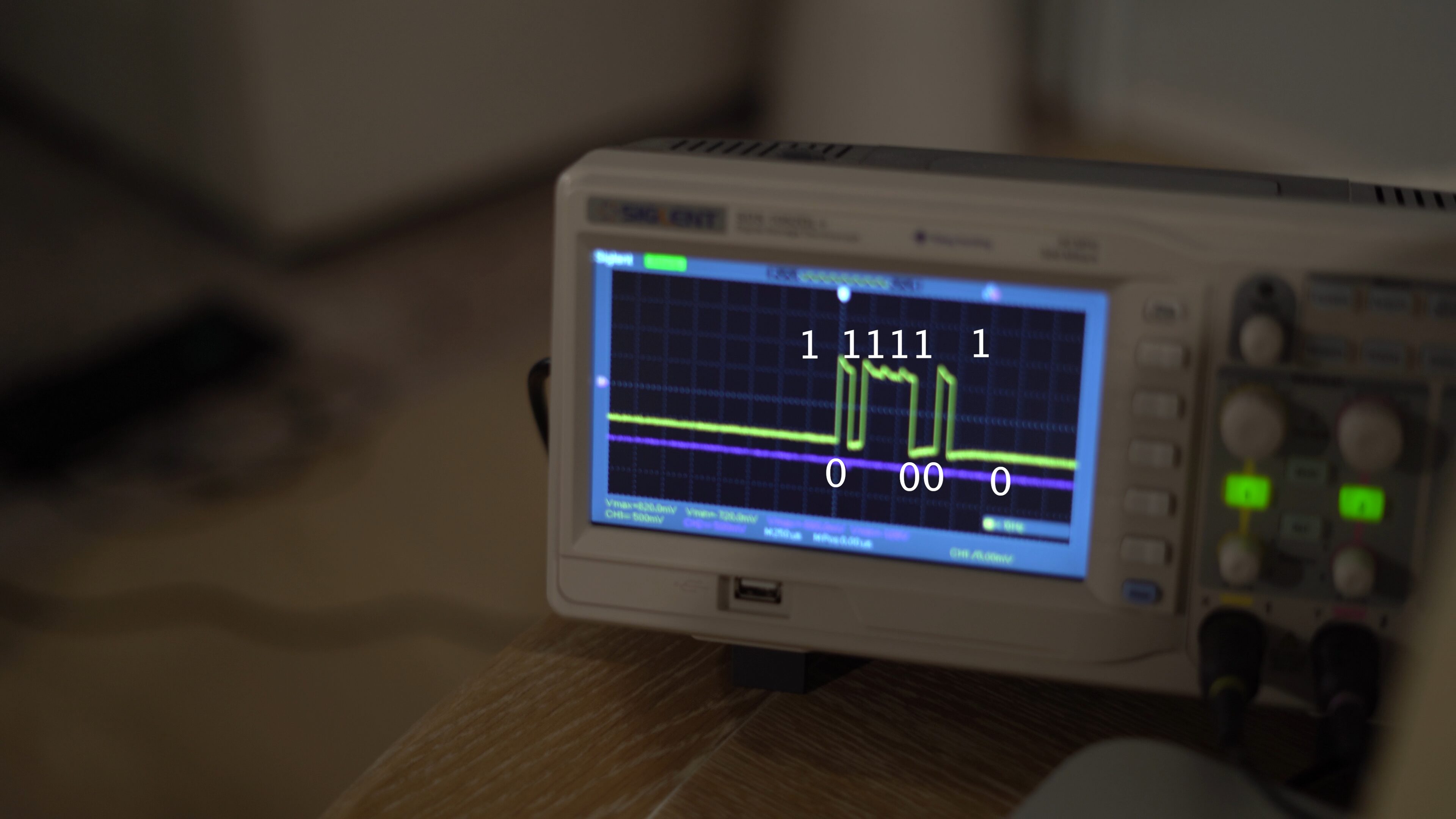
I had a mild skill issue plugging it in. I bought a wrongly keyed cable, so I had to run jumper wires instead of using the connector properly. I looked at the wiring diagram and tried wiring the TX, RX, and ground to the cable and tried to send bytes to it via `echo foo > /dev/ttyUSB0` but it didn’t work. I then brought out the oscilloscope and noticed that it _was_ sending in both directions. RX and TX were flipped. Classic.
Was that enough to run my app on the VT-100?
Unfortunately, that’s where the ease ended. Nobody3 today uses an external terminal over a USB connection. Why would you want to do that? USB devices have metadata associated with them that tells Linux the device on the other end is a printer or something, not an external terminal.
Issue #1: Flow control
At this point I could `echo` a couple of bytes into the `tty` device and see them on the VT-100, or `cat` bytes out of the device and see them on my Mac. However, if I tried to run my shell pointed at the tty device it blew up and half the characters would drop.
The issue was that the VT-100 has inline flow control that expects the host (i.e. the computer) to stop sending bytes if it is overwhelmed. It appears that this feature either never existed in MacOS or was removed at some point. We tried forcing it via `stty` but it just didn’t work.
We ended up running a Linux VM and setting the same option, which immediately worked.
This is enough to get `bash` and `vim` and other simple apps working.
Issue #2: Full terminal redraws are painful
The VT-100 is slow. It runs at 9600 baud4. That might sound like a lot, but text that contains a lot of ANSI escape sequences quickly exceeds this budget. The VT-100 doesn’t even support sending at the full 9600 baud continuously with any escape sequences. Text containing escape sequences is limited to even less than 9600.
At this speed, full screen redraws are slow. The solution to this is a “differential renderer”: a renderer that keeps track of the screen state and makes the minimal edit to minimize flicker. We thought we were doing this in our app but it turned out there were a few cases where we were redrawing and should not have been.
Issue #3: Assuming too much escape sequence compatibility
Our app was emitting escape sequences that the VT-100 didn’t understand. Normally the terminal ignores incorrect escape sequences, but there were a few hard blockers.
First, Unicode: the modern standard for computer text5. The VT-100 only supports ASCII6 characters. Our interface was mostly ASCII already, but a few characters looked nicer with Unicode, e.g. box drawing characters and loading spinners. We solved this by adding an ASCII-only mode.
Fun fact: one of our enterprise customers later requested ASCII-mode as a feature because their terminals didn’t have Unicode either. We got to tell them we have it already :)
Second, OSC sequences. The VT100 safely throws away standard ANSI escapes it doesn’t understand, but OSCs7 are a new format that it doesn’t understand at all. If you emit one, it prints the raw text of the OSC to the screen. I added a special “legacy” mode where the app never emits an OSC.
Impressions
After getting it working, using the VT-100 in person was delightful! I basically only need vim and my app to work, so except for the keyboard it is very usable. I think everyone who came by to check it out appreciated the contrast of old vs new technology.
I would like to try more things, so let me know if there’s something you want to see running on the VT-100!