OpenDisplay: free, open-source Sidecar/Duet alternative
Free & open source
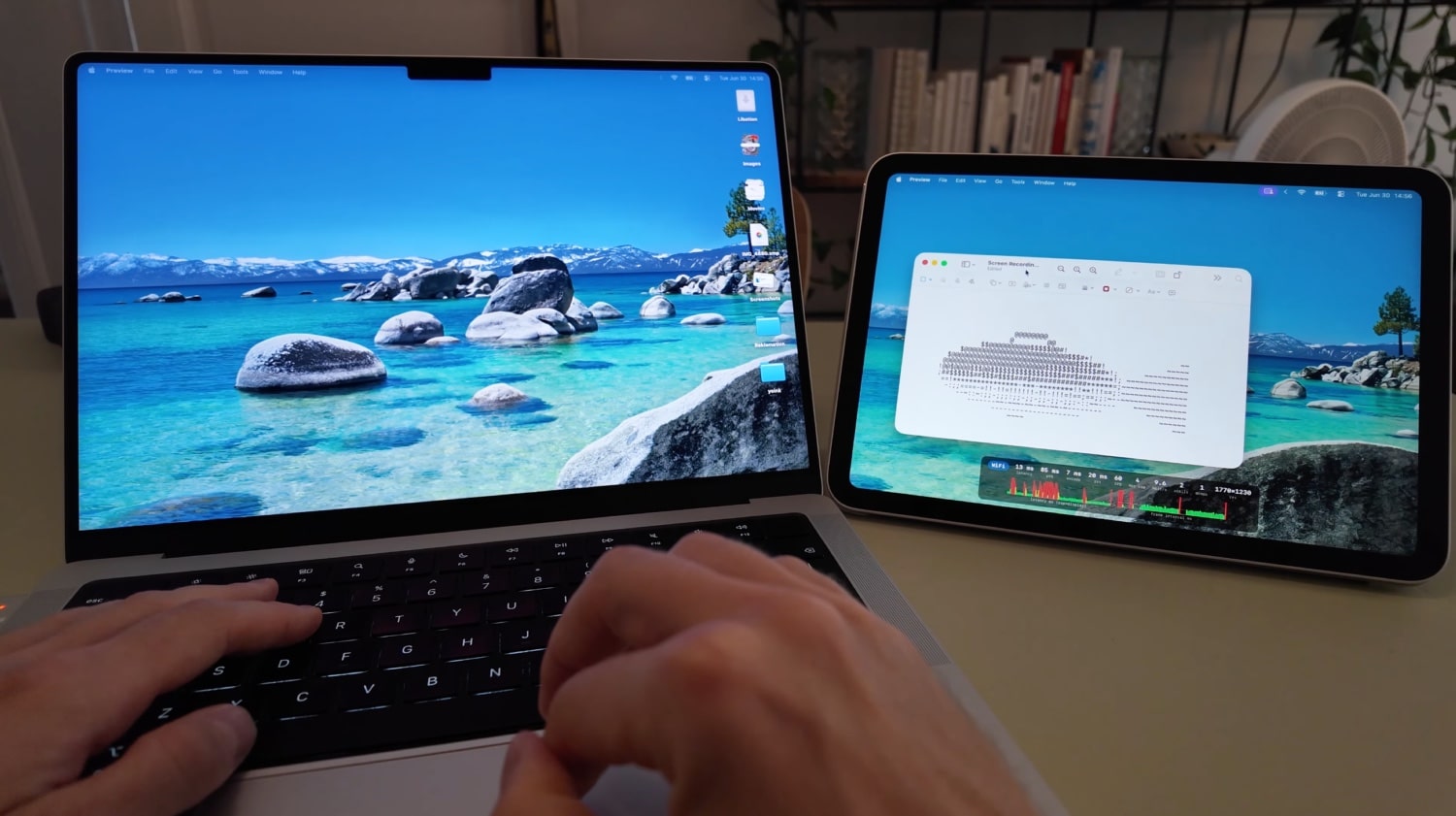
Use your partner's iPad as your Mac's second monitor.
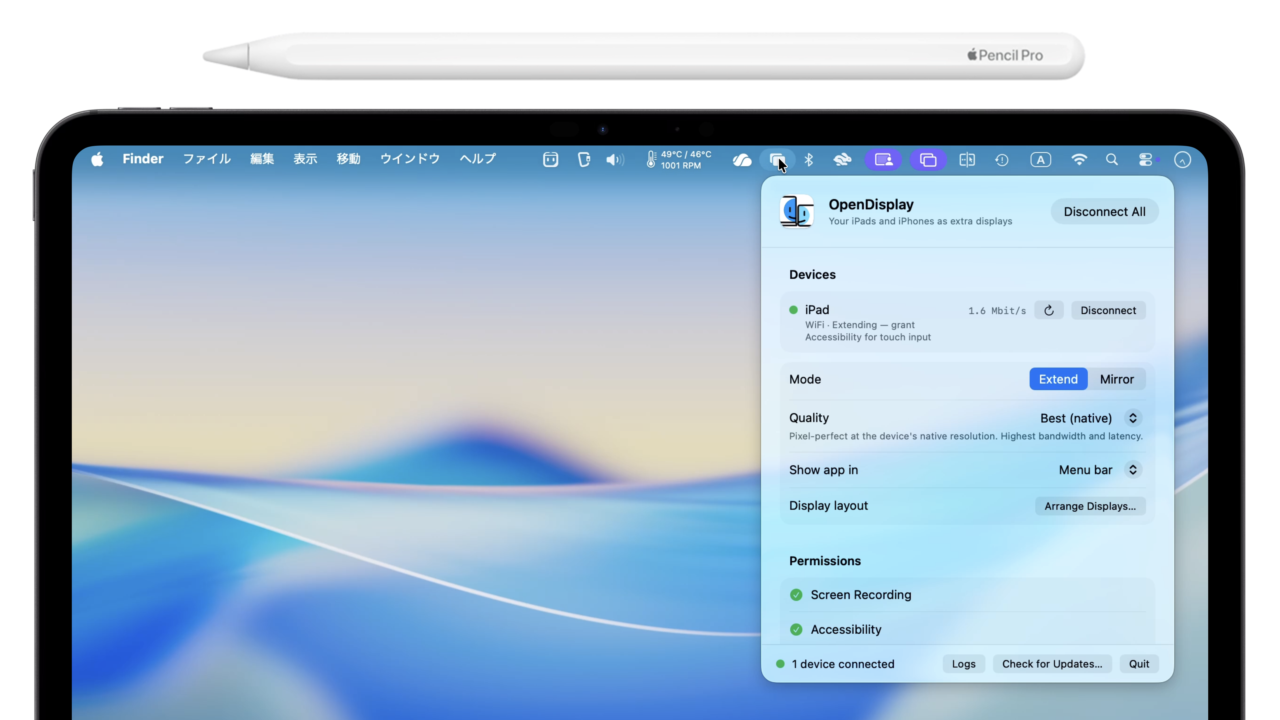
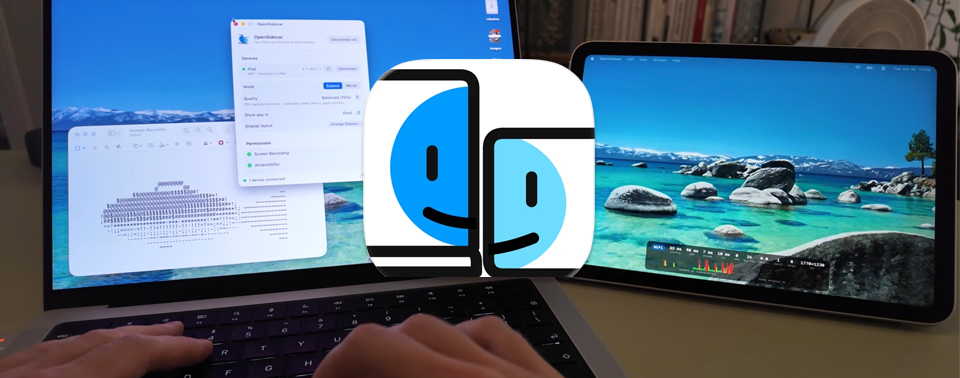
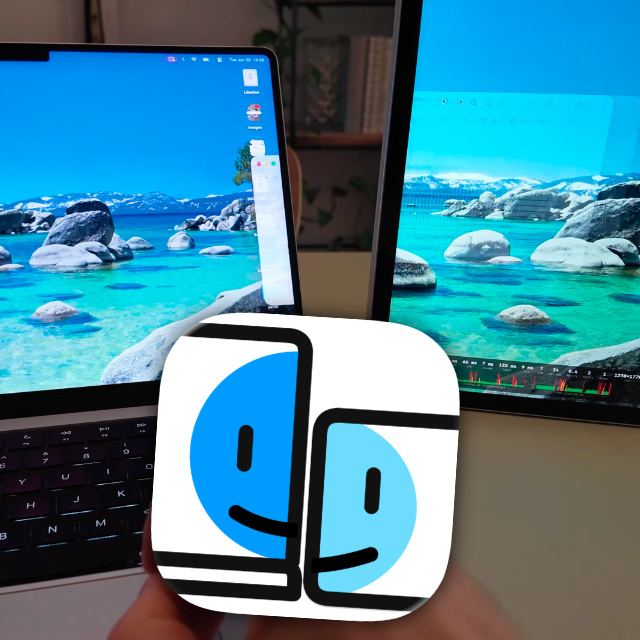
A free, open-source alternative to Apple Sidecar, Duet Display and Luna Display. Use your iPhone and iPad as a second — and even a third — screen for your Mac. A true extended display, not a mirror: USB or WiFi, Retina-sharp, with touch and scroll. No subscription. No dongle. No account. Android phones and tablets are in public beta, over WiFi, and so is a sender for Linux desktops.
macOS 14+ · iPadOS 15+ · iOS 15+ · Android 7.0+ (beta) · Receiver Mac 12+ · Linux sender (beta) · Linux receiver (beta) · GPL-3.0
OpenDisplay is **two apps that work together** — the **Sender** on your Mac (or Linux desktop) and a **Receiver** on the device you want to use as a display. Install both to get going.
Sender
Install this on the computer whose desktop you want to extend.
macOS
Captures a virtual display and streams it.
Or with Homebrew: `brew install --cask opendisplay`
Signed & notarized — opens normally on macOS 14+. Prefer to compile it yourself? Build from source ↗
Looking for an older version? Browse all releases ↗
Linux Beta
Extends a Wayland desktop onto any receiver.
Hyprland tested; Sway, KDE Plasma and GNOME experimental. Downloads ↗
Receiver
Install one on the device you want to use as your extra display.
!Image 2: QR code for joining the OpenDisplay Android beta Google Group

Android Beta
Early access for Android phones and tablets.
1. Join the OpenDisplay Google Group with the Google account you use on the phone. 2. Open the tester link on the phone or a computer, accept, then install OpenDisplay from Google Play.
Android 7.0 or later, over WiFi. Android 5 and 6 support via a direct download is coming.
macOS
Turns an older Mac into a second display.
Or with Homebrew: `brew install --cask opendisplay-receiver`
Got a spare _Mac_ to use as the display? Install OpenDisplay Receiver on it instead of the iOS app — runs on macOS 12+, so older Macs qualify.
Linux Beta
Turns a Linux machine into an extra display.
Demo
See it in action.
Using OpenDisplay in the wild? Tag @peetzweg on X and your setup might end up here.
[MacGadget ### OpenDisplay: iPhone oder iPad als Zusatzmonitor für den Mac nutzen News and background on Apple, Mac, iPhone and iPad. Read coverage ↗](https://www.macgadget.de/index.php/News/2026/08/12/OpenDisplay-iPhone-oder-iPad-als-Zusatzmonitor-fuer-den-Mac-nutzen)[**damo**@z12789 𝕏 之前通过Mac OS sidecar 把iPad 作为副屏使用,但是只能横屏不能竖屏。最后发现免费方案 OpenDisplay 很好的解决了这个问题。 August 13, 2026 View post ↗](https://x.com/z12789/status/2087988422824837490)[**Camille Roux**@CamilleRoux 𝕏 OpenDisplay : utilisez votre iPhone ou iPad comme second écran pour votre Mac, en USB ou WiFi. Open source, gratuit, sans compte, sans dongle. July 23, 2026 View post ↗](https://x.com/CamilleRoux/status/2080291868101812582)[**Berk Aladag**@aladagberk 𝕏 Eski iPhone veya iPad'in çekmecede duruyorsa, onu Mac'in için gerçek bir ikinci monitöre dönüştürebilirsin. OpenDisplay; Apple Sidecar ve Duet Display'e ücretsiz, açık kaynaklı bir alternatif. July 31, 2026 View post ↗](https://x.com/aladagberk/status/2083230517537718553)[**Oliver Prompts**@oliviscusAI 𝕏 Apple's Sidecar only works if your iPad and Mac share the same Apple ID. Duet charges a subscription. OpenDisplay does it free, no account, no dongle. July 29, 2026 View post ↗](https://x.com/oliviscusAI/status/2082506100021305653)[**小鹏Digital**@RocM301 𝕏 OpenDisplay还是蛮好玩的,使用的usb-c连接。iPad mini作为副屏延迟很好,保留了触摸体验。它不需要像系统内置的Sidecar那样要求同一个Apple ID。 July 15, 2026 View post ↗](https://x.com/RocM301/status/2077288370334740496)[**小鹏Digital**@RocM301 𝕏 闲置iPhone/iPad变Mac第二屏?OpenDisplay免费开源版来了!不用Sidecar限制、不用Duet订阅,直接USB或WiFi连,低延迟Retina画质还能触屏操作! July 14, 2026 View post ↗](https://x.com/RocM301/status/2076896134455566495)[**オカダリョウタロウ**@okdt 𝕏 OpenDisplay 使ってみてる。iPhone/iPadがMacの拡張ディスプレイになる。無料・アカウント不要、外部サーバー・テレメトリはないGPL-3.0のOSS。 August 9, 2026 View post ↗](https://x.com/okdt/status/2086467678991180198)[**MacGeneration**@MacGeneration 𝕏 OpenDisplay : l’alternative gratuite à Sidecar qui supprime plusieurs limites d’Apple. July 22, 2026 View post ↗](https://x.com/MacGeneration/status/2079841743303057559)[**阿尼欧Tiffany**@GcZsmkv 𝕏 🪄平替工具:免费且开源的将你的 iPhone 或 iPad 变成 Mac 的扩展显示器工具“OpenDisplay”,就像是Apple Sidecar(随航)功能的一个开源替代品。 July 5, 2026 View post ↗](https://x.com/GcZsmkv/status/2073793241083003241)
Support the project

If OpenDisplay saved you a monitor, consider buying me a coffee.
OpenDisplay is a one-person labour of love, built and maintained by me, Philip. It's not a company. It's just me.
It's free, open source, and funded out of my own pocket. The fixed costs are modest but real: **$99 a year** for the Apple Developer membership behind the signed, one-click installs, and **$11 a year** for the domain. On top of that go a lot of unpaid evenings and weekends.
Supporting me on Ko-fi keeps OpenDisplay well maintained and free for everyone, including the people who can't afford to chip in. My goal is to make this the greatest display companion app there is for iPad.
If it saved you from buying a monitor, a small tip helps keep it going. Thank you.


Features
A true extended display, the way it should be.
001
No account, ever
No sign-up, no email, no login. And unlike Apple Sidecar — which only works between devices on the _same_ Apple ID — OpenDisplay pairs across different Apple IDs, so you can use a partner's or friend's iPad. Download both apps and go.
002
Low-latency pipeline
Up to 60 FPS over USB. Hardware H.264 or HEVC (VideoToolbox real-time mode), TCP_NODELAY, and frame-dropping backpressure with instant keyframe recovery keep it responsive.
003
Two, even three screens
You're not limited to one device. Run several iPads and iPhones at once, each as its own extended display — up to three has been tested, and you can freely mix iPads and iPhones. Arrange them all in System Settings like real monitors.
004
Retina sharp
Native Retina resolution — the virtual display matches your device panel pixel-for-pixel at HiDPI (@2x), so text looks exactly like it should.
005
USB-wired, lowest latency
Streams over your charging cable via usbmux. No network, no jitter — and your phone charges while it works.
006
WiFi, zero config
The phone advertises itself with Bonjour; pick it from a dropdown. No IP addresses to type.
007
Touch & scroll
Tap to click, drag to drag, two-finger pan to scroll. A tiny touchscreen for your Mac.
008
Portrait mode
Rotate the phone and the virtual display rebuilds as a vertical monitor — perfect for chat, logs, or docs.
009
Private by design
One direct TCP connection between your devices. No servers, no accounts, no telemetry. Read the code.
010
A spare Mac as a display
Install the small _OpenDisplay Receiver_ app (macOS 12+) on an old Mac and another Mac extends onto it — a real Retina extended display, over WiFi or a Thunderbolt or Ethernet cable. An old MacBook becomes a second monitor.
011
Android, in beta
An Android phone or tablet works as a display too, over WiFi, with touch and scrolling. The app is in public beta on Google Play for Android 7.0 and later; join through the Download section above.
Why OpenDisplay
The device you already own becomes a real additional display.
Free, but iPad-only, requires both devices on the same Apple ID, and only on blessed hardware pairs. iPhones need not apply.
Pioneered the idea — now behind a subscription.
Great latency, but you're buying a hardware dongle.
OpenDisplay
Free, open source, auditable. The device you already own becomes a real additional display. If you were about to build your own — contribute here instead.
How it stacks up
| | OpenDisplay | Apple Sidecar | Duet | Luna | | --- | --- | --- | --- | --- | | Price | Free & open source | Free | Subscription | $$ + dongle | | iPhone as display | ✓ | ✕ | ✓ | ✕ | | Android as display | ✓ Beta | ✕ | ✓ | ✕ | | Mac as display | ✓ | ✕ | ✓ | ✓ | | Different Apple IDs | ✓ | ✕ | ✓ | ✓ | | No account / sign-up | ✓ | Apple ID | ✕ | ? | | Wired USB | ✓ | ✓ | ✓ | ✓ | | Open source | ✓ | ✕ | ✕ | ✕ |
A spare Mac as the display
For a Mac receiver, Apple's answer is AirPlay to Mac, not Sidecar. Luna and Duet have Mac-to-Mac modes, and a few newer apps do only this, mostly for a 5K iMac next to an Apple silicon laptop.
| | OpenDisplay | AirPlay to Mac | Luna | Duet Air | TargetBridge | Sharp | RetinaRelay | | --- | --- | --- | --- | --- | --- | --- | --- | | Price | Free & open source | Free | $89.99 + dongle | Subscription | Free & open source | Free & open source | $49 one-time | | Receiving Mac | macOS 12+ | iMac 2019+, MacBook 2018+ | macOS 10.13+ | macOS 10.14.6+ | macOS 11+ | macOS 10.15+ | iMac 2012+ | | Intel Mac as sender | ✓ | 2018+ | ✓ | ✓ | ✕ | ✓ | ✓ | | Wi-Fi | ✓ | ✓ | ✓ | ✓ | Experimental | ✕ | Fallback | | Cable | Thunderbolt, USB-C, Ethernet | USB | ✓ | ? | Thunderbolt | Ethernet | Thunderbolt, USB 3, Ethernet | | Native 5K on a 5K iMac | ✓ ~30 fps | ? | ✓ | ? | ✓ 48 fps | Experimental | ✓ 60 fps | | No account, any Apple ID | ✓ | Same Apple ID | ✓ | ✕ | ✓ | ✓ | ✓ | | Keyboard & mouse at the receiver | Planned | ✕ | ✓ | ✓ | ✓ | ? | ? | | Audio | ✕ | ✓ | ? | ? | ✓ | ✓ | ✓ | | Shut down the receiver from the sender | ✓ over a cable | ? | ? | ? | ? | ? | ? | | iPhone & iPad too | ✓ | ✕ | iPad only | ✓ | ✕ | ✕ | ✕ | | Open source | ✓ | ✕ | ✕ | ✕ | ✓ | ✓ | ✕ |
? means the project doesn't document it. Taken from each project's own site or README, October 2026.
FAQ
Questions, answered.
How does it actually work?
The Mac creates a virtual display with the private `CGVirtualDisplay` API (the same technique used by BetterDisplay and DeskPad), captures it with ScreenCaptureKit, hardware-encodes H.264 with VideoToolbox, and streams it over a single TCP connection — through the USB cable via usbmux, or over WiFi. The phone decodes and renders with`AVSampleBufferDisplayLayer` and sends touch coordinates back, which the Mac injects as mouse events.
Is this on the App Store?
Yes — the iPhone & iPad receiver is live on the App Store. The Mac app ships as a signed, notarized direct download rather than through the Mac App Store because it relies on `CGVirtualDisplay`, a private API — that's the deal for every virtual-display product: use it or ship a dongle. You can also build either app from source with your own (free) Apple developer account in a few minutes.
Why do I see the purple screen-recording indicator on my Mac? macOS shows that privacy indicator for _every_ app that captures the screen — Duet, Luna, OBS and Zoom included. Apple Sidecar avoids it only because it's built into the OS. It's a feature, not a bug: you always know a capture is running.
WiFi mode can't find my iPhone — why?
WiFi discovery needs the **Local Network** permission on _both_ sides, and macOS/iOS deny it silently if the prompt was missed: check System Settings → Privacy & Security → Local Network on the Mac, and Settings → Privacy & Security → Local Network on the iPhone. Both devices must be on the same WiFi and the iPhone app must be open. The Mac app shows a live permission panel, and the iPhone app has a settings screen (shake the phone) that links straight there. USB mode needs none of this.
iPad support? The receiver is a universal iOS app — it runs on iPad today. Run the Mac, an iPhone _and_ an iPad at once for a second and a third screen. iPad-specific features (Apple Pencil, pressure) are on the roadmap.
How do I get the Android app? It's in public beta on Google Play, for Android 7.0 and later. Two steps:
1. Join the OpenDisplay Google Group with the Google account you use on the phone. 2. Open the tester link on the phone or a computer, accept, then install OpenDisplay from Google Play.
Updates then arrive through Google Play like for any app. It connects over WiFi: open the app, and pick the device in the Mac app (or let `od-sender` find it on Linux). A USB cable isn't supported yet. Touch, scroll and rotation work like on an iPad; HEVC is used when the device has a hardware decoder, H.264 otherwise. Android 5 and 6 support via a direct download is coming.
Does it work on Linux?
Yes, as a sender in beta: the OpenDisplay Linux sender (`od-sender`) adds a virtual display to a Linux desktop and shows it on any OpenDisplay receiver, with touch coming back as pointer input. It is tested on Omarchy / Hyprland 0.56 on Apple silicon (Asahi), and x86_64 is expected to work; Sway 1.10+, KDE Plasma 6.8+ and GNOME 50+ are experimental. It encodes on the CPU for now (VA-API is planned). Install it from the latest release: a tarball with an installer for any distribution, or on Arch / Omarchy the package built from the repository with makepkg. The stream is not encrypted, so use a network you trust. See the Linux docs for setup and known issues.
A Linux _receiver_, which turns a Linux machine into the display, is in beta too: a Flatpak bundle for any distribution, or the Arch package built with makepkg. See the Linux receiver docs.
Can another Mac be the display?
Yes. Install _OpenDisplay Receiver_, a separate small app from the same release, on the spare Mac. It needs only macOS 12 Monterey or newer (the sending Mac needs 14), so Macs from around 2015 onward qualify. It appears on the sending Mac like a phone would and becomes a real extended Retina display. WiFi works out of the box. For a cable, use a _Thunderbolt or USB4_ cable (macOS sets up a Thunderbolt Bridge network between the two), Ethernet, or — on recent macOS on both Macs — a plain USB-C data cable (approve the "allow accessory" prompt on each Mac). The sender moves the session onto the cable automatically, even one plugged in mid-session. Keyboard and mouse input from the receiving Mac is a follow-up.
Which settings give the best picture?
The defaults are already the sharpest setup: the sender on Best, the receiver at its Default display setting, and the video fullscreen. A cable gives steadier latency than WiFi, but it doesn't need to be fast: the stream uses at most 18 Mb/s, so any USB data cable works for iPhone and iPad. For Mac to Mac, a Thunderbolt, USB4, Ethernet or USB-C data cable all give the same picture. Balanced and Fast send fewer pixels: softer, but smoother, with lower latency.
On WiFi, set AirDrop on the sending Mac to Contacts Only or No One. With Everyone, the Mac's WiFi pauses for about 75 ms twice a second to look for nearby devices, and the picture hitches each time. In our measurements this one setting removed almost all WiFi hitches.
On a Mac receiver, the display setting sets the desktop's size, sent 1:1 up to what the codec allows. With an Apple silicon sender and a receiver that decodes HEVC (Apple silicon, most Intel Macs from 2017 on) that is up to 5120×2880, so a 5K iMac at Default gets its full 2560×1440 desktop. Otherwise H.264 tops out at 4096×2304 (a 2048×1152 desktop). More Space gives more room, scaled once on the sender, so a little softer. A non-Retina receiver, such as a 2013 iMac, gets its own 2560×1440 desktop at 1x, sent 1:1 at 60 fps. Measured from an M5 Pro to a 5K iMac: Default + Best is the sharpest at about 30 fps; one or two steps toward Larger Text (1600×900) keeps text crisp at about 55 fps; Default + Fast is soft but about 58 fps for video. The README has the full table.
Is any of my screen data sent to a server?
No. One direct TCP connection between your Mac and your device. No accounts, no analytics, no cloud. The full story — what the apps store locally, which permissions they use and why, and the one current caveat about unencrypted WiFi transport — is on the privacy page.
What's the license? Can I fork it or use it commercially?
OpenDisplay is licensed under GPL-3.0. You can use, study, and adapt it freely — including commercially. If you distribute a modified version, it must remain open source under the same license with the original attribution intact, so improvements flow back to everyone instead of into closed forks. (Releases up to v0.4.x were MIT-licensed and remain available under those terms.)
Contribute
Open source, and built in the open.
OpenDisplay is GPL-3.0 and developed entirely on GitHub — the whole stack, from Mac capture and H.264 encoding to the iOS receiver, is yours to read, build, and improve. Bug reports, feature ideas, and pull requests are all welcome. Build-and-run instructions live in the README.
New here? Start with the README quick-start to build both apps, or browse the good first issues.