A whirlwind tour of systemd-nspawn containers
In the last yearly update, I talked about isolating my self-hosted LLMs running in Ollama as well as Open WebUI in `systemd-nspawn` containers and promised a blog post about it. However, while writing that blog post, a footnote on why I am using it instead of Docker accidentally turned into a full blog post on its own. Here’s the actual post on `systemd-nspawn`.
Fundamentally, `systemd-nspawn` is a lightweight Linux namespaces-based container technology, not dissimilar to Docker). The difference is mostly in image management—instead of describing how to build images with `Dockerfile`s and distributing prebuilt, read-only images containing ready-to-run software, `systemd-nspawn` is typically used with a writable root filesystem, functioning more similarly to a virtual machine. For those of you who remember using `chroot` to run software on a different Linux distro, it can also be described as `chroot` on steroids.
I find `systemd-nspawn` especially useful in the following scenarios:
1. When you want to run some software with some degree of isolation on a VPS, where you can’t create a full virtual machine due to nested virtualization not being available1; 2. When you need to share access to hardware, such as a GPU (which is why I run LLMs in `systemd-nspawn`); 3. When you don’t want the overhead of virtualization; 4. When you want to directly access some files on the host system without resorting to `virtiofs`; and 5. When you would normally use Docker but can’t or don’t want to. For reasons, please see the footnote-turned-blog post.
In this post, I’ll describe the process of setting up `systemd-nspawn` containers and how to use them in some common scenarios.
**Update (2025-05-19)**: added safer Alpine container creation instructions and some more guidance on setting up Alpine Linux containers.
Start with a `chroot`[](https://quantum5.ca/2025/03/22/whirlwind-tour-of-systemd-nspawn-containers/#start-with-a-chroot)
`systemd-nspawn`, like all containers, requires a separate rootfs in a directory. Since it doesn’t come with an image manager to build images for you, you’ll need to use the traditional Unix approach of creating a `chroot`. It is, after all, `chroot` on steroids.
For `systemd-nspawn`, the typical convention is to put these rootfses under `/var/lib/machines/[hostname]`, where the hostname is that of the container. For this exercise, I’ll just use the name of the OS as the hostname.
Each Linux distro has its own way of creating a new rootfs, so we’ll go through some of the more common ones. I am testing all this on Debian, but there’s no reason why you wouldn’t be able to do any of this on another distro by substituting the equivalent packages. Still, I’ll probably go deeper into Debian because I am more familiar with it.
`debootstrap` on the Debian family[](https://quantum5.ca/2025/03/22/whirlwind-tour-of-systemd-nspawn-containers/#debootstrap-on-the-debian-family)
`debootstrap` has featured on this blog many times, mostly when doing crazy things like installing Debian by hand from rescue systems. For Debian-based distros like Ubuntu or Debian itself, this is the tool to use to create a rootfs.
On a Debian-based OS, install it with `sudo apt install debootstrap`. It may also be packaged on other distros, or you can just download it from Debian’s repositories:
Either way you installed `debootstrap`, let’s create the rootfs in `/var/lib/machines/debian`:
Copy
``` $ sudo debootstrap --include=systemd,dbus,locales,bash-completion,curl bookworm /var/lib/machines/debian I: Target architecture can be executed I: Retrieving InRelease ... I: Base system installed successfully. ```
Here, we’ve installed `bookworm`, but feel free to substitute this for the latest Debian release. To avoid silly issues, I ensured that `systemd` and `dbus` are installed, along with `locales` to avoid weird warnings in `apt`, `bash-completion` so I don’t hate my life when typing in commands by hand, and `curl` so you can download stuff later. Some of these require a bit of additional configuration later, which we’ll do once we boot into the container.
Installing RHEL-derivatives with `dnf`[](https://quantum5.ca/2025/03/22/whirlwind-tour-of-systemd-nspawn-containers/#installing-rhel-derivatives-with-dnf)
First, install `dnf` and `rpm` if you are on another distro, e.g. on Debian:
Copy
``` $ sudo apt install dnf rpm ... Setting up dnf (4.14.0-3+deb12u1) ... Setting up rpm (4.18.0+dfsg-1+deb12u1) ... ... $ sudo mkdir -p /var/lib/rpm $ sudo rpm --initdb ```
Then, we make a Fedora 41 chroot as an example:
Copy
``` $ sudo mkdir -p /var/lib/machines/fedora/etc/dnf $ sudo tee /var/lib/machines/fedora/etc/dnf/dnf.conf > /dev/null [fedora] name=Fedora $releasever - $basearch metalink=https://mirrors.fedoraproject.org/metalink?repo=fedora-$releasever&arch=$basearch gpgkey=https://getfedora.org/static/fedora.gpg
[updates] name=Fedora $releasever - $basearch - Updates metalink=https://mirrors.fedoraproject.org/metalink?repo=updates-released-f$releasever&arch=$basearch gpgkey=https://getfedora.org/static/fedora.gpg
$ sudo dnf --releasever=41 --best --setopt=install_weak_deps=False --repo=fedora --repo=updates --installroot=/var/lib/machines/fedora install dnf fedora-release glibc glibc-langpack-en iproute iputils less ncurses passwd systemd systemd-networkd systemd-resolved util-linux vim-default-editor ... Transaction Summary ================================================================================ Install 137 Packages
Total download size: 62 M Installed size: 206 M Is this ok [y/N]: y ... Complete! ```
Installing Alpine Linux with `alpine-nspawn-install`[](https://quantum5.ca/2025/03/22/whirlwind-tour-of-systemd-nspawn-containers/#installing-alpine-linux-with-alpine-nspawn-install)
Alpine Linux is commonly used in Docker images due to its lightweight size, so I thought I might as well try creating an Alpine Linux chroot. The usual tool for this sort of thing is `alpine-chroot-install`, but its default behaviour is **horrifying** for our use case. For example:
1. If the current directory is inside `/home`, it binds it into the chroot it configures for “compatibility reasons,” without any warning. I almost **accidentally deleted my entire home directory** when running `rm -rf` on the chroot…
2. It mounts `/dev`, `/proc`, and `/sys` into the chroot as well. In the case of `/dev`, any subsequent attempt to `chown` the container to take advantage of UID isolation would `chown` all the devices on the host system as well, leading to a disaster that fortunately could be fixed by rebooting.
It is possible to run a crazy `umount` command afterward to clean up after `alpine-chroot-install`, such as:
Copy
``` mount | grep /var/lib/machines/alpine | cut -d' ' -f3 | sort -r | while read -r path; do sudo umount "$path"; done ```
However, I deem this a ticking time-bomb waiting to explode in someone’s face, so instead, I **forked the script** and created `alpine-nspawn-install`. My version removes all the crazy “features” of `alpine-chroot-install` that don’t make sense for `systemd-nspawn`, e.g. the mounting, chroot helper scripts, `qemu` support, etc.2, while installing a more sane list of packages by default. You can use it like this:
Now let’s see if Alpine lives up to its reputation:
Copy
``` $ sudo du -sh /var/lib/machines/debian 338M /var/lib/machines/debian $ sudo du -sh /var/lib/machines/fedora 507M /var/lib/machines/fedora $ sudo du -sh /var/lib/machines/alpine 16M /var/lib/machines/alpine ```
Well, that’s certainly impressive… Alpine is an order of magnitude smaller than the other two, while Fedora is quite bloated with the list of packages I have installed. I am not a Fedora user and copied the package list from the Arch Linux wiki guide on `systemd-nspawn`, so I am not sure if it’s because I’ve installed bloat, but they all seem pretty necessary… It’s certainly bigger than what `dnf` claimed to be, so I took a look, and `dnf` created 260 MiB of stuff under `/var/cache/dnf`.
Also to be fair to Debian, I did install a bunch of “bloat” like locales for a more pleasant experience. Removing the “bloat” results in 305 MiB, which is slightly smaller.
Initial boot with `systemd-nspawn`[](https://quantum5.ca/2025/03/22/whirlwind-tour-of-systemd-nspawn-containers/#initial-boot-with-systemd-nspawn)
First, install `systemd-nspawn` with `sudo apt install systemd-container` or your distro’s equivalent.
Then, you can get a root shell in a container by running the following command:
Copy
``` $ sudo systemd-nspawn -D /var/lib/machines/[name] -M [name] --private-users=pick --private-users-ownership=chown ```
And here is what each argument does:
- `-D` (`--directory`) specifies the directory of the rootfs;
- `-M` (`--machine`) specifies the machine name, which is also set as the hostname inside the container;
- `--private-users=pick` enables UID and GID namespaces by picking a range of 65536 UIDs and GIDs from an unused block on the host system starting from a multiple of 65536 in the range of 524288 and 18789826563. Alternative options include `yes`, which selects the range starting from the owning UID and GID of the rootfs (must be a multiple of 65536); `no`, which disables UID namespacing; an integer, which serves as starting UID for a block of 65536; or a string of the format `a:b`, where `a` is the starting UID and the number of UIDs to assign to the container; and finally
- `--private-users-ownership=chown` changes the ownership of the rootfs to that of the UID and GID chosen so that on future boots, `--private-users=yes` will keep using the same UIDs and GIDs.
Let’s boot Debian as an example:
Copy
``` $ sudo systemd-nspawn -D /var/lib/machines/debian -M debian --private-users=pick --private-users-ownership=chown Spawning container debian on /var/lib/machines/debian. Press ^] three times within 1s to kill container. Selected user namespace base 1766326272 and range 65536. root@debian:~# ```
And we are in the newly created Debian container. Note that this is **just** a root shell and isn’t a proper way to deploy the container long term. There is no `init` process even.
Debian-specific setup tips[](https://quantum5.ca/2025/03/22/whirlwind-tour-of-systemd-nspawn-containers/#debian-specific-setup-tips)
If you are going to be using a root shell for a significant amount of time and want autocomplete to avoid typing entire commands:
Copy
``` root@debian:~# cp /etc/skel/.bashrc . root@debian:~# . ~/.bashrc ```
If you are just using the container to run a single application, it can get really tedious to manage your own users and then sudo, so I just opt to do the management as root and having a functioning `.bashrc` works wonders. This is technically not best practice, but I basically never run commands in single application containers that don’t require `root` anyway, so it makes no real difference.
`debootstrap` also copied the host’s hostname into `/etc/hostname`. Let’s fix that:
Copy
``` root@debian:~# hostname > /etc/hostname ```
Getting back into the container[](https://quantum5.ca/2025/03/22/whirlwind-tour-of-systemd-nspawn-containers/#getting-back-into-the-container)
If you exited the root shell for some reason, you can go back by doing:
Copy
``` $ sudo systemd-nspawn -D /var/lib/machines/debian -M debian --private-users=yes Spawning container debian on /var/lib/machines/debian. Press ^] three times within 1s to kill container. Selected user namespace base 1766326272 and range 65536. root@debian:~# ```
Preparing the container[](https://quantum5.ca/2025/03/22/whirlwind-tour-of-systemd-nspawn-containers/#preparing-the-container)
Running the container like this isn’t a long-term solution. You probably want to set it up to run properly in the background. However, this leaves the question of how to access the container. If you are using a systemd-based distro, you have a few options:
- If you just want to access the container from the host machine, you don’t need to do anything, as you’ll see how to get direct shell access with `machinectl`. You can also:
- Set a root password with `passwd` so you can log in from a terminal: Copy
``` root@debian:~# passwd New password: Retype new password: passwd: password updated successfully ```
- Install `openssh-server` and set up SSH keys to connect remotely (you’ll also need to set up networking, as explained later, or you won’t be able to connect): Copy
``` root@debian:~# apt install openssh-server ... Created symlink /etc/systemd/system/sshd.service → /lib/systemd/system/ssh.service. Created symlink /etc/systemd/system/multi-user.target.wants/ssh.service → /lib/systemd/system/ssh.service. Processing triggers for libc-bin (2.36-9+deb12u10) ... root@debian:~# curl -q https://ssh.qt.ax -o ~/.ssh/authorized_keys % Total % Received % Xferd Average Speed Time Time Time Current Dload Upload Total Spent Left Speed 100 243 100 243 0 0 3934 0 --:--:-- --:--:-- --:--:-- 3983 ``` Note that because we only have a root shell right now, not a proper boot, `systemd` (or any other init system) isn’t actually running—so don’t expect to be able to start `sshd` for the moment. The next step will boot the container properly.
- Create a user, set up `sudo`, etc. and log in as that user. This is left as an exercise for the reader.
Note that console and shell access through `machinectl` requires `systemd` to be running inside a container. This will not be possible when using a non-systemd distro, such as Alpine. If you are using Alpine, you’ll need the `openssh-server` route.
Alpine Linux notes[](https://quantum5.ca/2025/03/22/whirlwind-tour-of-systemd-nspawn-containers/#alpine-linux-notes)
The default Alpine Linux install created by `alpine-chroot-install` is configured exclusively for `chroot` use and doesn’t even include a functioning `init` system. To run it in a `systemd-nspawn` container properly, we’ll need to install `openrc`, their init system, as well as `openssh-server`:
Copy
``` alpine:~# apk add openrc openssh-server ... alpine:~# rc-update add sshd alpine:~# rc-update add networking ```
If you are using my `alpine-nspawn-install` script instead, **this is all done for you**. All you have to do is some basic configuration:
Copy
``` alpine:~# hostname > /etc/hostname alpine:~# mkdir -p ~/.ssh alpine:~# wget https://ssh.qt.ax -O ~/.ssh/authorized_keys ... ```
Alpine uses `ifupdown-ng` to configure networking, and the syntax should be compatible with Debian’s, so you can just copy the examples below. You’ll need to do the networking configuration before starting the container, or you will be unable to log in via `ssh`.
Using `machinectl`[](https://quantum5.ca/2025/03/22/whirlwind-tour-of-systemd-nspawn-containers/#using-machinectl)
We can create `/etc/systemd/nspawn/[name].nspawn` to manage the container with `machinectl`, e.g. `machinectl start [name]`. Note that the `/etc/systemd/nspawn` directory isn’t created by default, so you may need to:
Copy
``` $ sudo mkdir -p /etc/systemd/nspawn ```
The `.nspawn` file is a text file in INI format that contains the equivalent of command line arguments to `systemd-nspawn`. For the basics, do the equivalent of `--private-users=yes`:
Copy
``` [Exec] PrivateUsers=yes ```
There are many other options, such as networking, resource limits, and bind mounting directories on the host system into the container. We’ll cover those later.
For non-systemd distros like Alpine, add `KillSignal=SIGTERM` to the `[Exec]` section to ensure that `init` can terminate properly when the container is stopped. The default signal of `SIGRTMIN+3` is only understood by systemd, and `SIGTERM` is understood more broadly.
For now, let’s try starting the container in the background, with a full `init` system:
Copy
``` $ sudo tee /etc/systemd/nspawn/debian.nspawn > /dev/null [Exec] PrivateUsers=yes $ sudo machinectl start debian $ sudo machinectl login debian Connected to machine debian. Press ^] three times within 1s to exit session.
Debian GNU/Linux 12 debian pts/1
debian login: root Password: Linux debian 6.1.0-32-amd64 #1 SMP PREEMPT_DYNAMIC Debian 6.1.129-1 (2025-03-06) x86_64
The programs included with the Debian GNU/Linux system are free software; the exact distribution terms for each program are described in the individual files in /usr/share/doc/*/copyright.
Debian GNU/Linux comes with ABSOLUTELY NO WARRANTY, to the extent permitted by applicable law. Last login: Wed Mar 19 22:59:57 EDT 2025 on pts/1 root@debian:~# ```
And we are logged in! To leave, press Ctrl+] three times to disconnect from the console, like `machinectl` suggests.
You can also just get a direct shell with `machinectl shell`:
Copy
``` $ sudo machinectl shell root@debian Connected to machine debian. Press ^] three times within 1s to exit session. root@debian:~# ```
To stop this container, use `sudo machinectl stop`. For non-systemd distros, use `sudo systemctl stop systemd-nspawn@[name]`.
To run this container on boot, you can simply run:
Copy
``` $ sudo machinectl enable debian ```
To undo this, use `sudo machinectl disable`.
Note that `machinectl` just controls the underlying systemd unit, `systemd-nspawn@[name].service`. This will become important later. Note that you can configure additional options on the unit by running `sudo systemd edit systemd-nspawn@[name].service`.
Networking[](https://quantum5.ca/2025/03/22/whirlwind-tour-of-systemd-nspawn-containers/#networking)
Networking is configured under the `[Network]` section in the `.nspawn` file. There are several options:
Use host networking[](https://quantum5.ca/2025/03/22/whirlwind-tour-of-systemd-nspawn-containers/#use-host-networking)
This means that the container shares the same network as the host machine. There is no network isolation anywhere. This is the easiest option to set up, but it’s not very isolated, so I wouldn’t recommend it if you want isolation.
This is the default with invoking `systemd-nspawn` directly, which is why `apt install` worked earlier without any networking config. This can be enabled with `VirtualEthernet=no` in the `.nspawn`.
Use a bridge[](https://quantum5.ca/2025/03/22/whirlwind-tour-of-systemd-nspawn-containers/#use-a-bridge)
!Image 1: Example bridge topology for containers
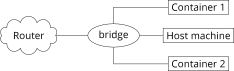
Example bridge topology for containers
A Linux bridge is basically just a virtual ethernet switch. On Debian, you can create one with `ifupdown` by installing the `bridge-utils` packages and modifying your `/etc/network/interfaces`.
If you are running a PC behind a router at home (or somehow have a lot of IPs from your hosting provider), you can add your current interface (we’ll use `eth0` as an example) to a bridge. It’ll be like connecting both the cable that goes into `eth0` and your PC into a virtual switch, along with any containers. You’ll need to replicate the IP assignment currently on `eth0` onto the bridge, since it effectively pulls `eth0` out of your machine. Your IP configuration will need to be done on the bridge interface instead, which connects to the virtual port on the switch for your machine.
For static IPs, add the following stanza to `/etc/network/interfaces` and delete (or comment out with `#`) the block for `eth0`:
Copy
``` auto br_test iface br_test inet static bridge-ports eth0 bridge-stp off bridge-fd 0 address 192.0.2.123/24 # replace this with the current eth0 IPv4 address gateway 192.0.2.1 # replace this with the current eth0 IPv4 gateway
remove this whole section if you don't have IPv6
iface br_test inet6 static address 2001:db8::123/64 # replace this with the current eth0 IPv6 address gateway 2001:db8::1 # replace this with the current eth0 IPv6 gateway ```
Alternatively, if you prefer DHCP for IPv4 and SLAAC) for IPv6:
Copy
``` auto br_test iface br_test inet dhcp bridge-ports eth0 bridge-stp off bridge-fd 0
iface br_test inet6 auto ```
You can of course name the bridge anything you’d like, though you are advised to start the name with `br`. Also note that this turns off the Spanning Tree Protocol (STP) to make new connections go online faster, but you really shouldn’t be involving this virtual bridge in a loop topology anyway. Doing bridges on any other platform or networking tool is left as an exercise for the reader. The Arch Linux wiki may prove helpful here even if you aren’t using Arch Linux.
Then, you can just use `Bridge=br_test` in your `.nspawn` file (`--network-bridge=br_test` on the command line) to hook up the virtual interface `host0` inside the container to the bridge. You can then set up `/etc/network/interfaces` inside the container (or your distro’s equivalent) as follows:
Copy
``` auto host0 iface host0 inet static address 192.0.2.124/24 # replace this with an unused IP address on the network gateway 192.0.2.1 # replace this with the current eth0 IPv4 gateway
remove this whole section if you don't have IPv6
iface host0 inet6 static address 2001:db8::123/64 # replace this with an unused IP address on the network gateway 2001:db8::1 # replace this with the current eth0 IPv6 gateway ```
Alternatively, if you prefer DHCP for IPv4 and SLAAC for IPv6:
Copy
``` auto host0 iface host0 inet dhcp iface host0 inet6 auto ```
Note that you can hook up multiple containers to the same bridge, so you only have to do this once.
If you are using `systemd-networkd` in the guest, create `/etc/systemd/network/host0.network` with the following content in the container:
Copy
``` [Match] Name=host0
[Link] RequiredForOnline=routable
[Network]
for DHCP
DHCP=yes
or comment it out and use static IPs:
Address=192.0.2.124/24 Gateway=192.0.2.1 Address=2001:db8::123/64 Gateway=2001:db8::1 ```
You may need to enable `systemd-networkd`:
Copy
``` [root@fedora ~]# systemctl enable --now systemd-networkd ```
Use NAT[](https://quantum5.ca/2025/03/22/whirlwind-tour-of-systemd-nspawn-containers/#use-nat)
!Image 2: Example NAT topology for containers
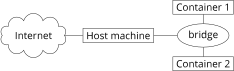
Example NAT topology for containers
Alternatively, if you can’t bridge your current network (e.g. you are using a VPS and only have one IP assigned), all is not lost. You can create a bridge with your own custom network and route it instead. This is bridge is new virtual network and the real network interface isn’t plugged into it.
For IPv4, I would recommend allocating yourself a random /24 from the RFC 1918 range. We’ll use `192.0.2.0/24` as the example, since it’s reserved for documentation.
For IPv6, ask your ISP to delegate you a /64 (or a bigger block, but you only need a /64 for this), which most competent4 VPS providers should be able to do. If you are running this at home, see if your router can use DHCP-PD to request a large block and delegate a /64 to the host machine. We’ll use `2001:db8::/64` as the example.
In either case, assign the first address in the subnet to the bridge per convention.
Copy
``` auto br_test iface br_test inet static bridge-ports none bridge-stp off bridge-fd 0 address 192.0.2.1/24
remove this if you can't get a IPv6 block
iface br_test inet6 static address 2001:db8::1/64 ```
You’ll then need to set up NAT by running the following `iptables` command:
Copy
``` $ sudo iptables -t nat -A POSTROUTING -s 192.0.2.0/24 -j MASQUERADE ```
Alternatively, if you have a static IP on the host, say `198.51.100.123`, you can also use a `SNAT` rule, which is faster:
Copy
``` $ sudo iptables -t nat -A POSTROUTING -s 192.0.2.0/24 -j SNAT --to-source 198.51.100.123 ```
You’ll need to run this every boot. Doing so is left as an exercise for the reader. You can use one of the prebuilt firewalls, a `systemd` unit, or even `rc.local`. For more details, consult your distro’s documentation on `iptables`.
You’ll also need to configure the following `sysctl`s. You can do so by adding them into `/etc/sysctl.conf` or uncommenting the line that already exists:
Copy
``` net.ipv4.ip_forward=1 net.ipv6.conf.all.forwarding=1 ```
Then run `sudo sysctl -p`. This will allow the host machine to act as a router.
Once that’s done, use `Bridge=br_test` in your `.nspawn` file like before to hook up `host0` inside the container to the bridge. You can then set up `/etc/network/interfaces` inside the container (or your distro’s equivalent) as follows:
Copy
``` auto host0 iface host0 inet static address 192.0.2.2/24 # replace this with an address not already in use gateway 192.0.2.1
remove this whole section if you don't have IPv6
iface host0 inet6 static address 2001:db8::2/64 # replace this with an address not already in use gateway 2001:db8::1 ```
For `systemd-networkd`, use the same example as the bridge section above.
You can also use DHCP and SLAAC, but that requires running a DHCP and route advertisement server on the host. Options include `dnsmasq`. Doing so is left as an exercise for the reader.
Note that you can hook up multiple containers to the same bridge with NAT, so you only have to do this once.
Connecting to the container[](https://quantum5.ca/2025/03/22/whirlwind-tour-of-systemd-nspawn-containers/#connecting-to-the-container)
Now that the networking is configured, you should be able to connect to the container. For example, with `ssh` and the bridge example:
Copy
``` $ ping 192.0.2.124 PING 192.0.2.124 (192.0.2.124) 56(84) bytes of data. 64 bytes from 192.0.2.124: icmp_seq=1 ttl=64 time=0.141 ms ^C --- 192.0.2.124 ping statistics --- 1 packets transmitted, 1 received, 0% packet loss, time 0ms rtt min/avg/max/mdev = 0.141/0.141/0.141/0.000 ms $ ssh root@192.0.2.124 ... root@debian:~# ```
Binding files and directories from the host system[](https://quantum5.ca/2025/03/22/whirlwind-tour-of-systemd-nspawn-containers/#binding-files-and-directories-from-the-host-system)
Another common thing to do is mounting certain files and directories from the host machine into the container. This can be done in the `[Files]` section of the `.nspawn` file. Here are some examples:
Copy
``` [Files]
Mounts /srv/example on the host with read/write access into the container
at the same path
Equivalent to --bind=/srv/example on the command line
Bind=/srv/example
Mounts /srv/example on the host with read-only access at /data
inside the container
Equivalent to --bind-ro=/srv/example:/data on the command line
BindReadOnly=/srv/example:/data
Mounts /srv/example on the host with read/write access into the container
at /test, but without recursively binding anything mounted underneath
Bind=/srv/example:/test:norbind ```
The third parameter allows comma-separated bind options to be specified. There are two related to the style of bind mounting:
- `rbind` (the default): recursively bind mounts underneath the host path; and
- `norbind`: don’t bind mounts underneath the host path.
There are also four options related to UID mapping. Recall that containers are given $y$ UIDs in the range $\left[\right. x , x + y \left.\right)$ on the host. These options are:
- `noidmap` (the default): maps UID $z \in \left[\right. 0 , y \left.\right)$ in the container to UID $x + z$ on the host, and out-of-range UIDs are shown as `nobody` inside the guest5;
- `idmap`: performs identity mapping, i.e. UID $z \in \left[\right. 0 , y \left.\right)$ in the container will be mapped UID $z$ on the host, and out-of-range UIDs are shown as `nobody`;
- `rootidmap`: the `root` user inside the container is mapped to the owner of the path being bound, and every other user on the host will be shown as `nobody`; and
- `owneridmap`: the owner of the mountpoint inside the container is mapped to the owner of the path being bound, and every other user on the host will be shown as `nobody`.
You can use `noidmap` pretty easily to allow access to user $z$ inside the container by granting access to $x + z$ on the host. You can do this with traditional permissions, but I get lazy and just use POSIX ACLs instead, which are so much more flexible. For example, to grant UID 13333337 write access to everything under `/srv/example`, you can simply run (after installing the `acl` package on Debian or the equivalent):
Copy
``` $ setfacl -Rm u:13333337:rwX /srv/example ```
If you want to also have this apply to new files created under the directory, you can also run:
Copy
``` $ setfacl -Rdm u:13333337:rwX /srv/example ```
I may write an introduction to POSIX ACLs one day, but there are plenty of resources online and figuring out the details is left as an exercise for the reader for the time being.
Also note that you don’t have to bind mount directories. You can bind mount files also. Needless to say, don’t grant the container more access than necessary.
Sharing the GPU[](https://quantum5.ca/2025/03/22/whirlwind-tour-of-systemd-nspawn-containers/#sharing-the-gpu)
Another interesting use is sharing the host’s GPUs with the guest. Note that unlike doing VFIO passthrough on a KVM virtual machine, the device can be shared between the host and multiple guests. This is accomplished by bind mounting device files.
Nvidia GPUs[](https://quantum5.ca/2025/03/22/whirlwind-tour-of-systemd-nspawn-containers/#nvidia-gpus)
In the `.nspawn` file:
Copy
``` [Files] Bind=/dev/nvidia0 Bind=/dev/nvidiactl Bind=/dev/nvidia-modeset Bind=/dev/nvidia-uvm Bind=/dev/nvidia-uvm-tools ```
You’ll need to make sure the driver version inside the guest matches that on the host. You’ll also need to allow the systemd unit access by `systemctl edit systemd-nspawn@[name].service` and putting in the following lines:
Copy
``` [Service] DeviceAllow=/dev/nvidia0 rw DeviceAllow=/dev/nvidiactl rw DeviceAllow=/dev/nvidia-modeset rw DeviceAllow=/dev/nvidia-uvm rw DeviceAllow=/dev/nvidia-uvm-tools rw ```
Intel and AMD GPUs[](https://quantum5.ca/2025/03/22/whirlwind-tour-of-systemd-nspawn-containers/#intel-and-amd-gpus)
In the `.nspawn` file:
Copy
``` [Files] Bind=/dev/dri ```
Note that this will share access of _all_ GPUs. Passing through a specific GPU is left as an exercise for the reader.
Limiting resource usage[](https://quantum5.ca/2025/03/22/whirlwind-tour-of-systemd-nspawn-containers/#limiting-resource-usage)
You can limit CPU cores by setting CPU affinity like this:
Copy
``` [Exec] CPUAffinity=0-1,8-9 ```
You can also add CPU and memory limits through standard `systemd` mechanisms by editing the unit, such as:
Copy
``` [Service]
Note that a CPU quota > 100% means allowing more than one core,
so this means two full cores are allowed:
CPUQuota=200%
MemoryMax=1G MemorySwapMax=512M
Limit I/O to 100 MB/s
IOReadBandwidthMax=100M IOWriteBandwidthMax=100M ```
For more details, see the systemd documentation on resource control.
Conclusion[](https://quantum5.ca/2025/03/22/whirlwind-tour-of-systemd-nspawn-containers/#conclusion)
And that’s a quick whirlwind tour of `systemd-nspawn`. We went over a lot, but that was mostly because there were so many valid ways of setting things up. With `systemd-nspawn`, you are free to configure things in a way that pleases you with full control. In the end, it’s just like a virtual machine. You can do whatever you want!
Once you figure out a setup that you like, you really just need a name and an IP address allocation, before running a few commands to prepare the image during the first boot. Everything else just requires editing the `.nspawn` file. You can even make your own script to automate everything. Doing that, of course, is left as an exercise for the reader.
Notes[](https://quantum5.ca/2025/03/22/whirlwind-tour-of-systemd-nspawn-containers/#notes)
1. Even if nested virtualization is available, it typically has weird limitations and stability issues. It’s usually not recommended to run it in production.↩
2. Other crazy features deleted include the way it copies the user running `sudo` into the `chroot`, or the way it randomly calls `apt` to install packages on the host system, or the way it screws around with `sudo` rules inside the container.↩
3. For those of you who think in binary, this is effectively using the bottom 16 bits for UID/GIDs inside the container, and setting the high 16 bits to a value between `0x8` and `0x6fff`.↩
4. VPS providers who fail to grant you a /64 at least—either by default or by request—for your own uses have failed to deploy IPv6 properly and should be ashamed of themselves. For the uninitiated, IPv6 specifically doesn’t use NAT, but instead allocates all hosts on a network with a globally unique IP address. For this reason, and to facilitate SLAAC, every L2 network needs to have a /64 block assigned to it. Good ISPs know this and assign such blocks on request, or even hand out larger blocks like /56 or /48 so you don’t need to bother them all the time.↩
5. While unmappable UIDs are shown as `nobody` inside the container, it doesn’t mean the `nobody` user can actually access those files. The real UID as seen by the host is checked for access. Remember that `root` is mapped to UID $x$ on the host. If UID $x$ doesn’t have access, even the `root` user inside the container will be denied access.↩